-(2).png)
Family Plan Step 9: Usage Stats Reports for Families
Keeping an Eye on Your Child’s Progress 😊
Watching your child’s progress can be reassuring — and really helpful — as they work on building math fact fluency. Usage Stats Reports give you an easy way to see how often your child practices, how long they stay engaged, and how their effort adds up over time.
If you have more than one child using the program, you can also look at reports for multiple children at once.
Reports are simple to view, can be adjusted to show different time periods, and can be downloaded if you’d like to save or print them.
Individual Usage Stats Reports
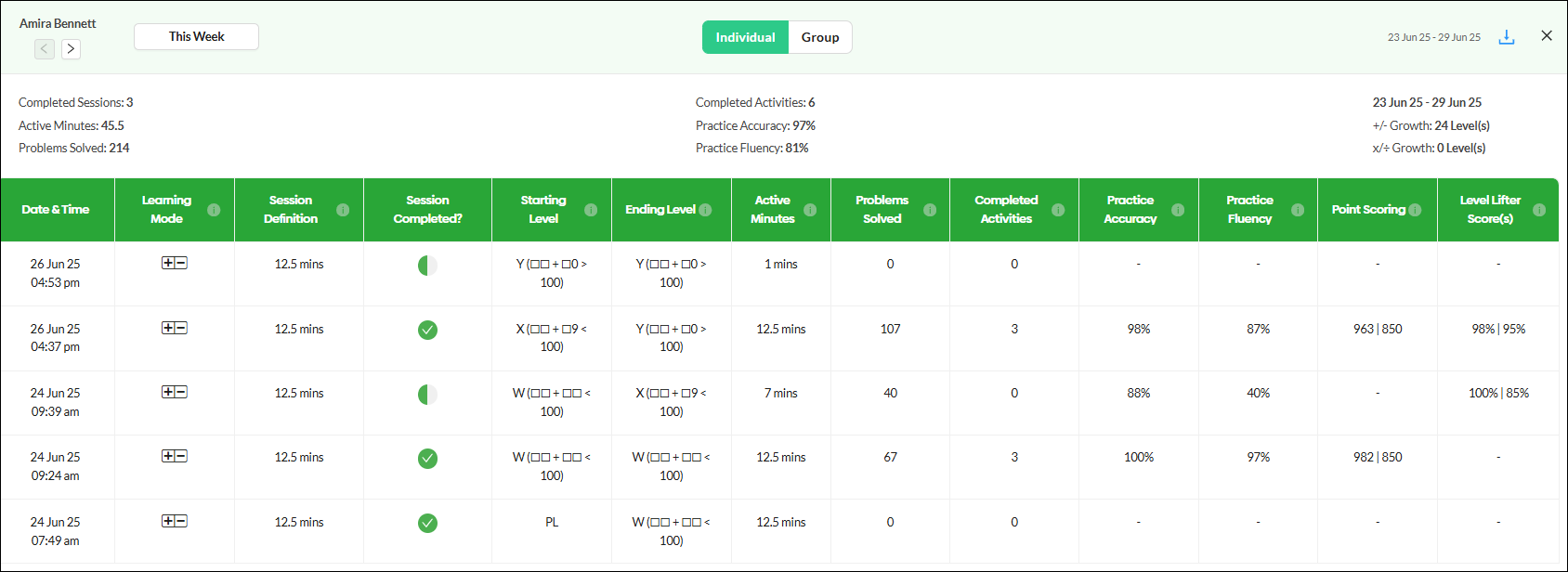
Individual Usage Stats Reports focus on one child at a time. These reports show a clear picture of your child’s practice habits and progress during the time period you choose.
Each report includes:
- A table with key practice information
- Helpful info icons you can hover over to learn what each column means
- A summary at the top that highlights the most important progress indicators.
You can download these reports as PDF or CSV files, which are sent to your email so you can look at them later. Previously exported reports may be downloaded by following the directions in this help document.
How to View a Report for One Child
- Go to the Children page in your family account.
- Choose the Performance view.
- Click the Usage Stats button.

- Select the Individual view. If the report doesn’t fit on your screen, scroll left and right or zoom out.
- Use the date range menu to choose the time period you want to display.
- Click the export icon if you’d like to download or print the report.


Across the top of the Individual Stats reports is a summary of eight key measures of your child's progress for the date range you have selected.

Group Usage Stats Report
If you have more than one child using MathFactLab, Group Usage Stats Reports let you view everyone’s activity in one easy-to-read place.
Even if only one child is using MathFactLab, the group report can still be very helpful. Instead of showing details from each individual session, it provides a simple summary of your child’s overall progress. This makes it easier to spot patterns over time, see how consistently your child is practicing, and notice when they might benefit from a little extra encouragement.
If your child's name is highlighted in yellow or red, it will alert you to the fact that your child has been on the same level for many sessions. Yellow indicates they have been on the same level for 10 or more sessions, and red means they've been on the same level for 15 or more sessions.
Each child appears as a row in the table, with clear information about their practice and progress.
You can:
- Change the date range
- Switch between Addition/Subtraction and Multiplication/Division
- Sort the table by different columns
- Download the report to keep or share

How to Generate Group Usage Stats Reports:
- To view the Group Usage Stats report, follow the steps above for creating an Individual Stats Report and, when that report opens, click on the Group tab. (A)
- Use the drop-down menu to change the report from addition and subtraction to multiplication and division. (B)
- You can change the date range of the report from the default setting to any beginning and end point you wish. (C)
- The information icon next to the title of each column heading will describe that data point. (D)
- If there are multiple children in your account, columns with up and down arrows can be used to sort the table by that data point. (E)
- These reports can be exported for printing or future reference. (F)

Noticing When Your Child May Need Support 💛
In group reports, your child’s name may sometimes appear highlighted in yellow or red. This simply means they haven’t advanced to the next level in a while and may benefit from:
- More consistent practice
- A shorter or longer session
- Encouragement or a quick check-in
- Modifying their settings to make the assessments less challenging.
You can click on your child’s name to see a short summary of their current status, along with helpful guidance if they seem stuck or frustrated.
These highlights are meant to be supportive - not alarming - and can help you decide when to step in or adjust your child’s routine.

The Articles in the Getting Started with a Family Account Series of Help Docs
- Creating an Account for Your Child
- Generating a Login Card for Your Child
- How Your Child Can Log In
- Your Child's Placement Test
- Editing Your Child's Settings
- Your Child's Experience in MathFactLab
- Level Lifters: How Your Child Advances through the Program
- Monitoring Your Child's Progress
- Usage Stats Reports about Your Child
- Further Details for Families
@ZOHO