-(2).png)
Administrator Dashboard Updates for 2026-27
The MathFactLab administrator dashboard includes several updates for the 2026–27 school year. Below is a summary of each update, along with links to more detailed information.
- Available Tabs
- Growth Report
- Grade Levels Tab
- Date Range for Schools, Grades, Classes, and Students Tabs
- The Performance Side of the Students Tab
Available Tabs
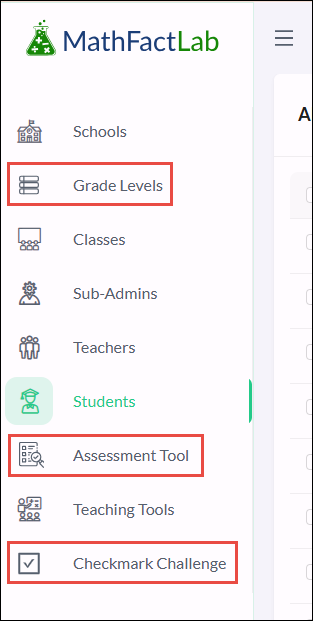
Administrators now have access to a new Grade Levels tab and will soon have access to two more: the Assessment Tool and Checkmark Challenge. The Growth Gauge and Feedback tabs have been removed.
The Assessment Tool will be ready early in the school year, and the Checkmark Challenge will be available soon after.
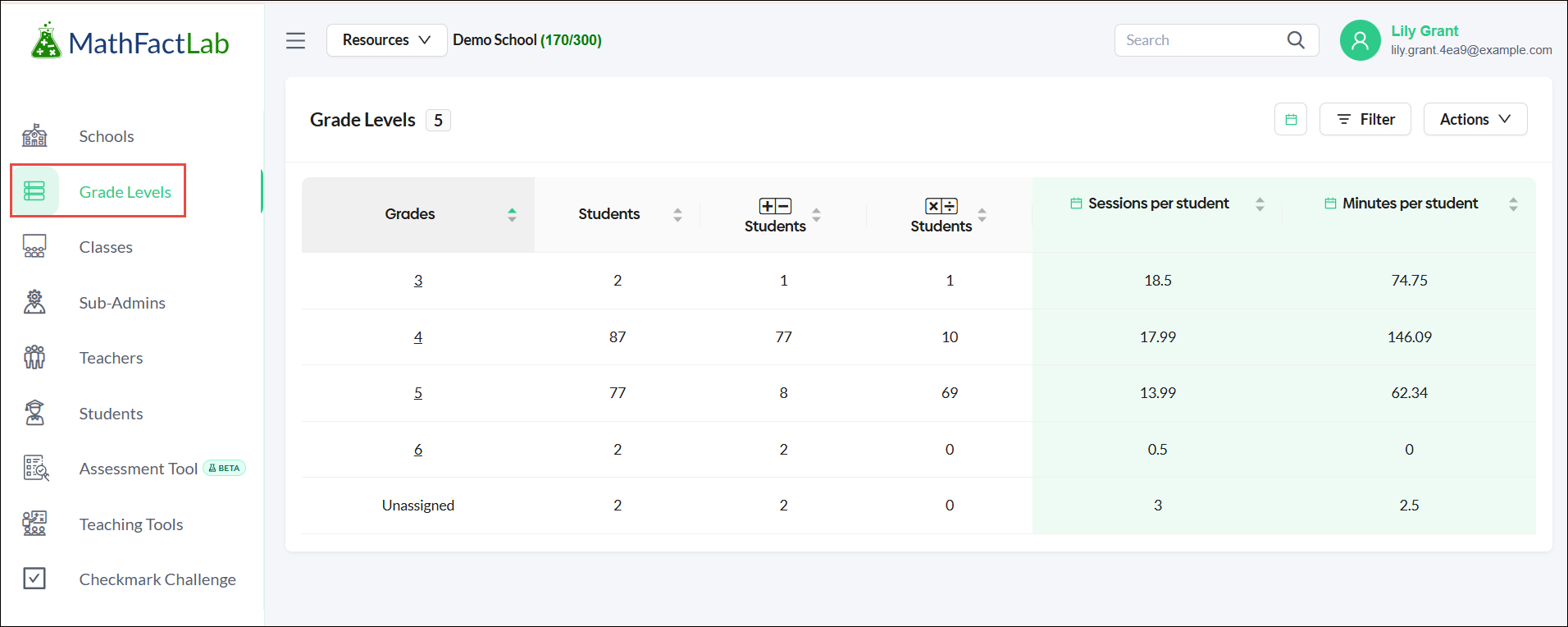
The Grade Levels tab provides a summary of student progress by grade level. The Assessment Tool allows administrators to measure students’ math fact fluency at selected points throughout the school year. The Checkmark Challenge gives students opportunities to work together toward shared goals, compete with other groups or classes, and demonstrate their progress in math fact fluency.
Growth Report
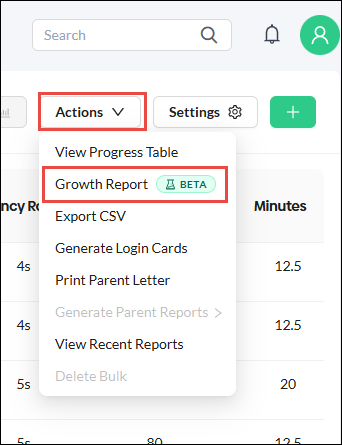
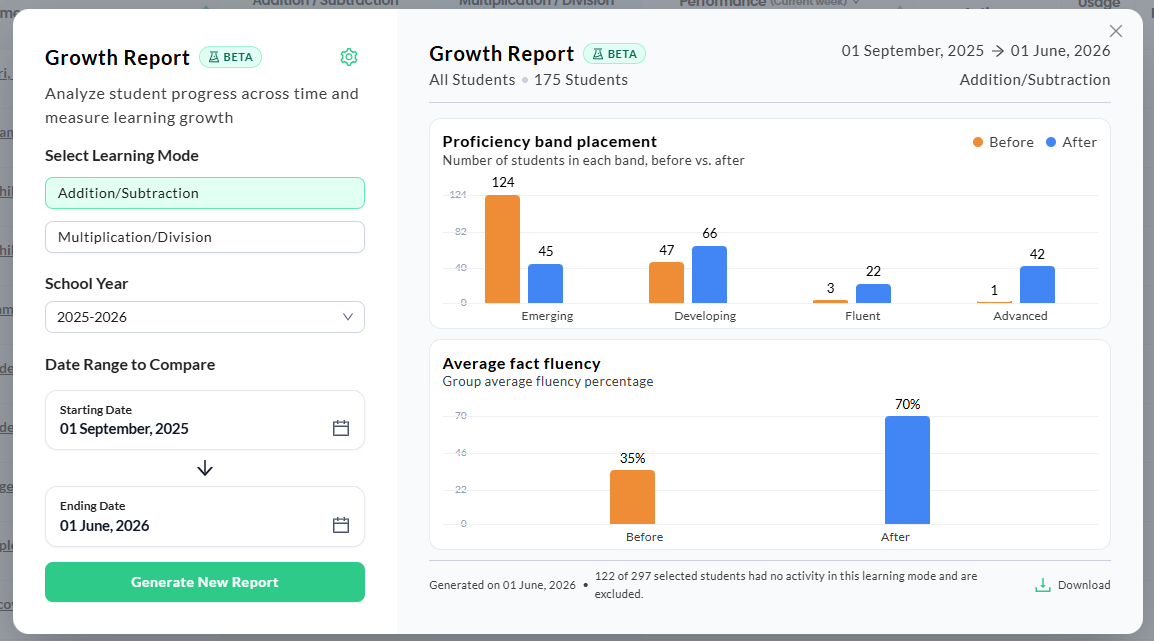
The Growth Report replaces the Growth Gauge. It summarizes data for a selected group of students and generates two bar graphs showing their progress over a specified date range. The completed report can be downloaded as a one-page PDF.
The Growth Report is currently in Beta.
|
|
|
Grade Levels Tab
The Grade Levels tab provides administrators with a school- or district-wide summary organized by grade level. It includes the same columns as the Classes tab. Selecting a grade filters the student list to show only students in that grade.
Date Range for Schools, Grades, Classes, and Students Tabs
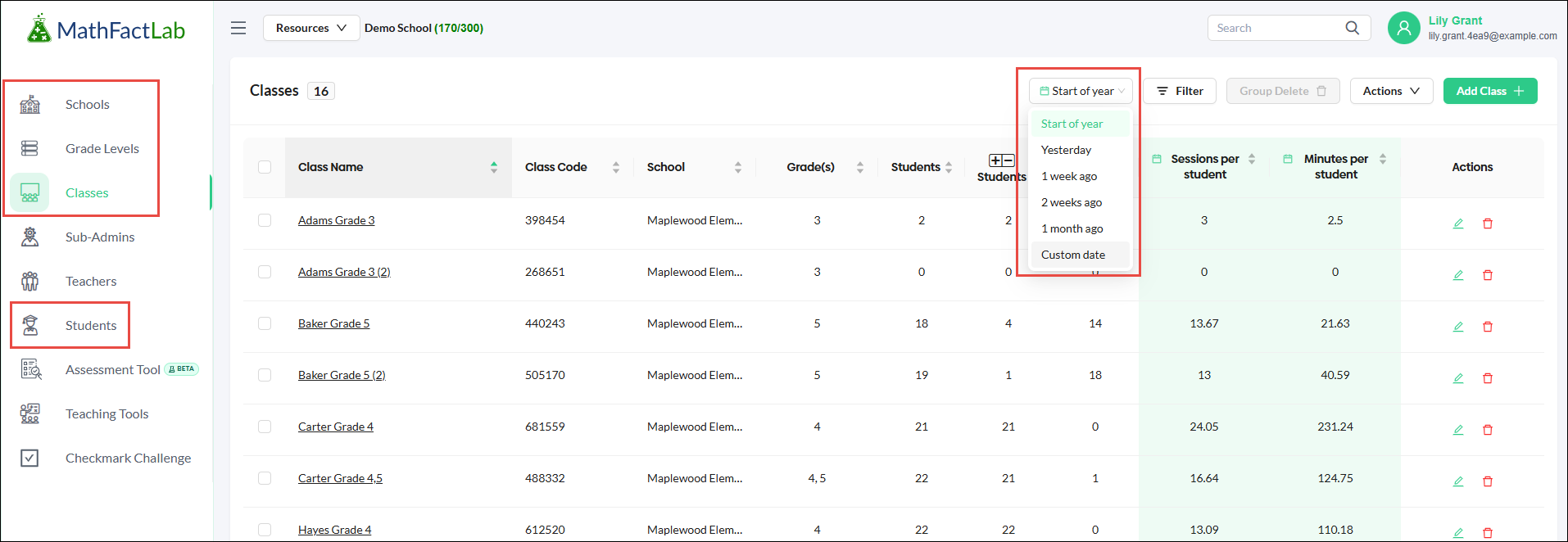
Administrators can select a date range for the data displayed on the Schools, Grades, and Classes tabs, as well as the Growth data on the Students tab. The selected date range determines the Sessions per Student and Minutes per Student data shown on the Schools, Grade Levels, and Classes tabs, and the Growth data shown on the Students tab.
The Performance Side of the Students Tab
Student Growth
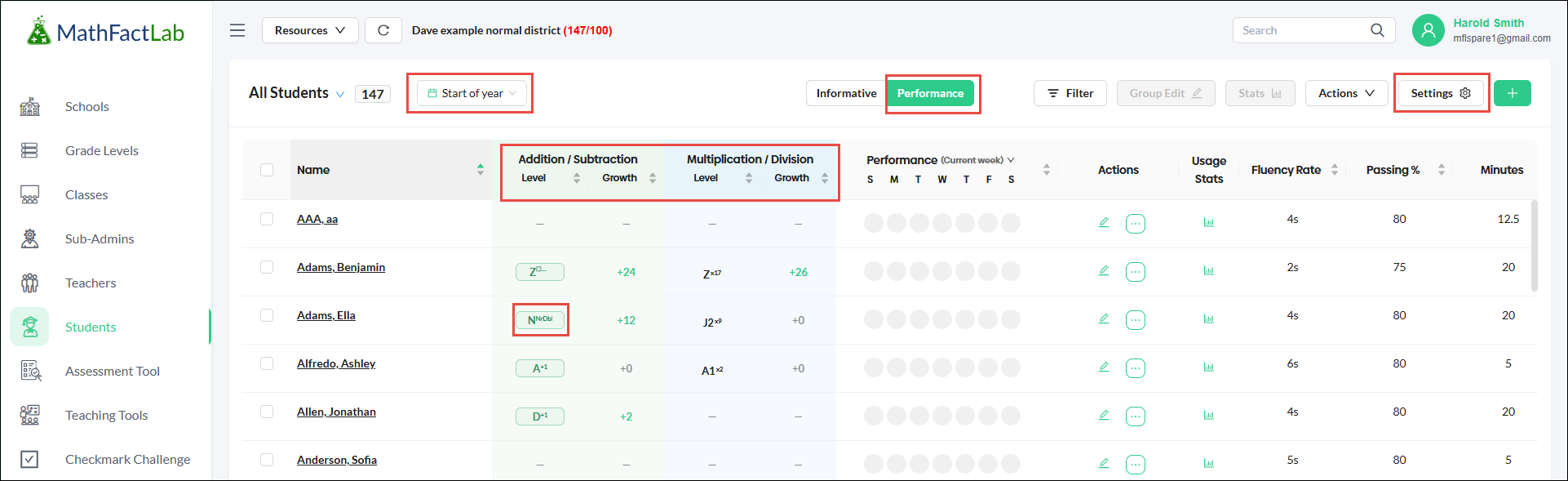
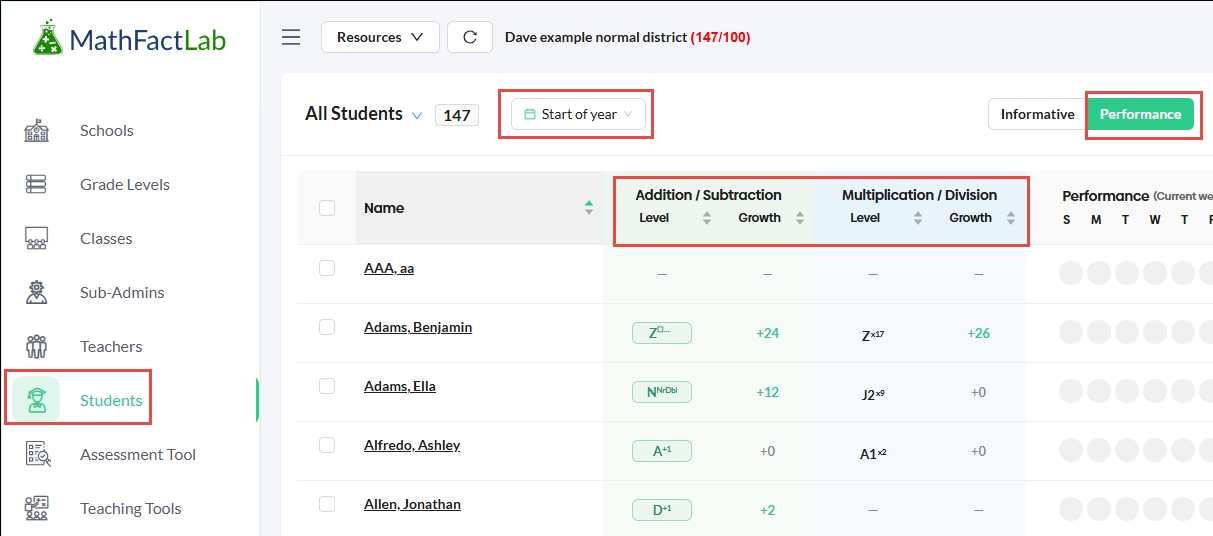
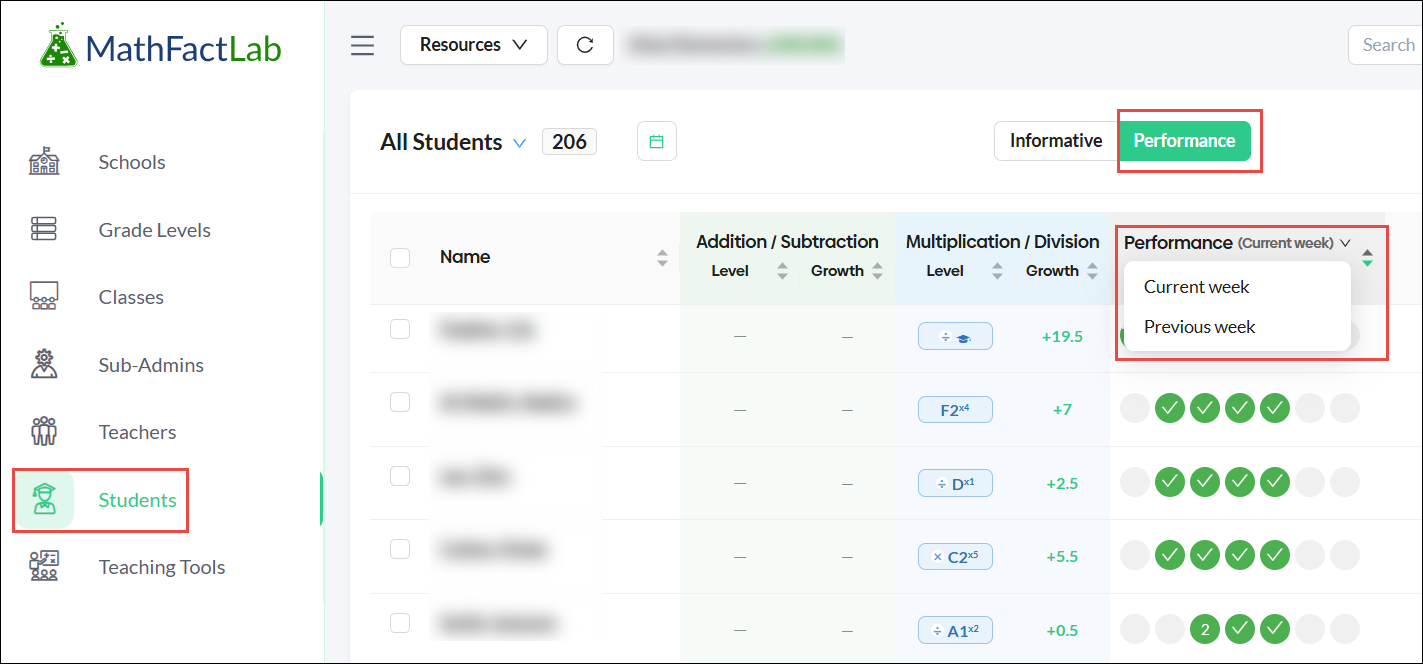
The Performance view of the Students tab now displays each student’s Current Level and Growth, rather than their initial and current levels. Growth shows the number of levels the student has advanced since the selected starting point, with Start of Year selected by default.
Weekly Performance
The Performance during the week column now has the option to see the Previous week as well.
Simplify the Performance View
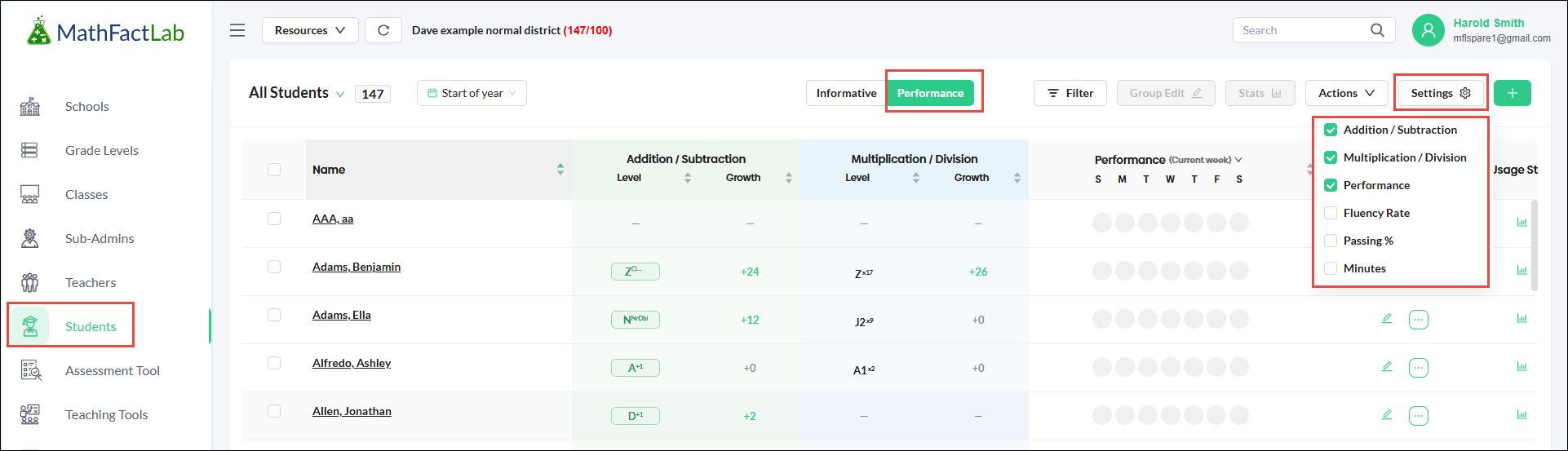
Users can now show or hide columns in the Performance view of the Students tab. In the Settings menu, checkboxes allow users to choose which of the six columns are displayed.
Student Level Details
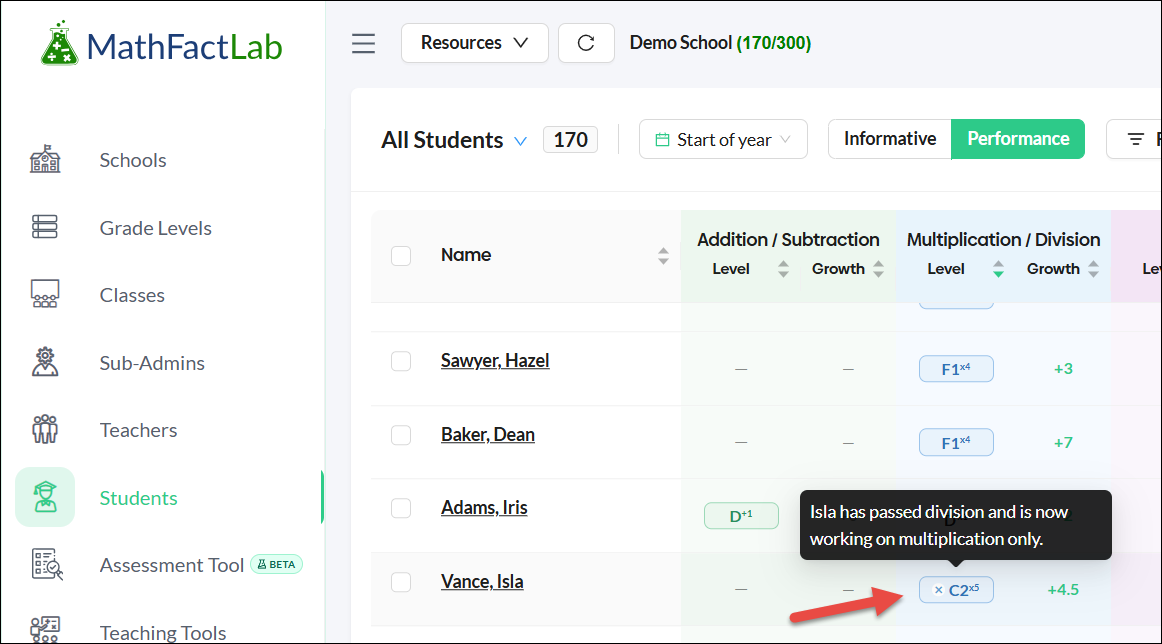
The level letter inside an oval indicates the learning mode where the student is currently working: addition and subtraction or multiplication and division.
Each level letter now includes a superscript identifying the fact family for that level. Hover over the level to see a larger, easier-to-read pop-up with additional details.
When an operation symbol appears before the level letter, the student has mastered the inverse operation and is now working on the operation shown. For example, the pop-up in the screenshot below indicates that the student is working at Level C2 on the 5s fact family. The student has mastered division and is now working on multiplication.